HiPaint Mod is a drawing software designed for creators. Users can log in on tablets, phones, and other devices to seamlessly continue their previous drawing progress, allowing them to edit images anytime, anywhere. During the drawing process, users can freely choose from hundreds of pen types and customize their colors, thicknesses, and other settings. Using various vector, gradient, and symmetry tools, users can create exquisite patterns and flexibly utilize operations such as adding, hiding, and merging layers to create even more refined works. Users can export their artwork to their devices or share it with friends to garner more likes and comments.
Besides features such as brush, eraser, color fill, and shape moving that any painting application must have, HiPaint Mod also provides unique features to support you in the painting process such as:
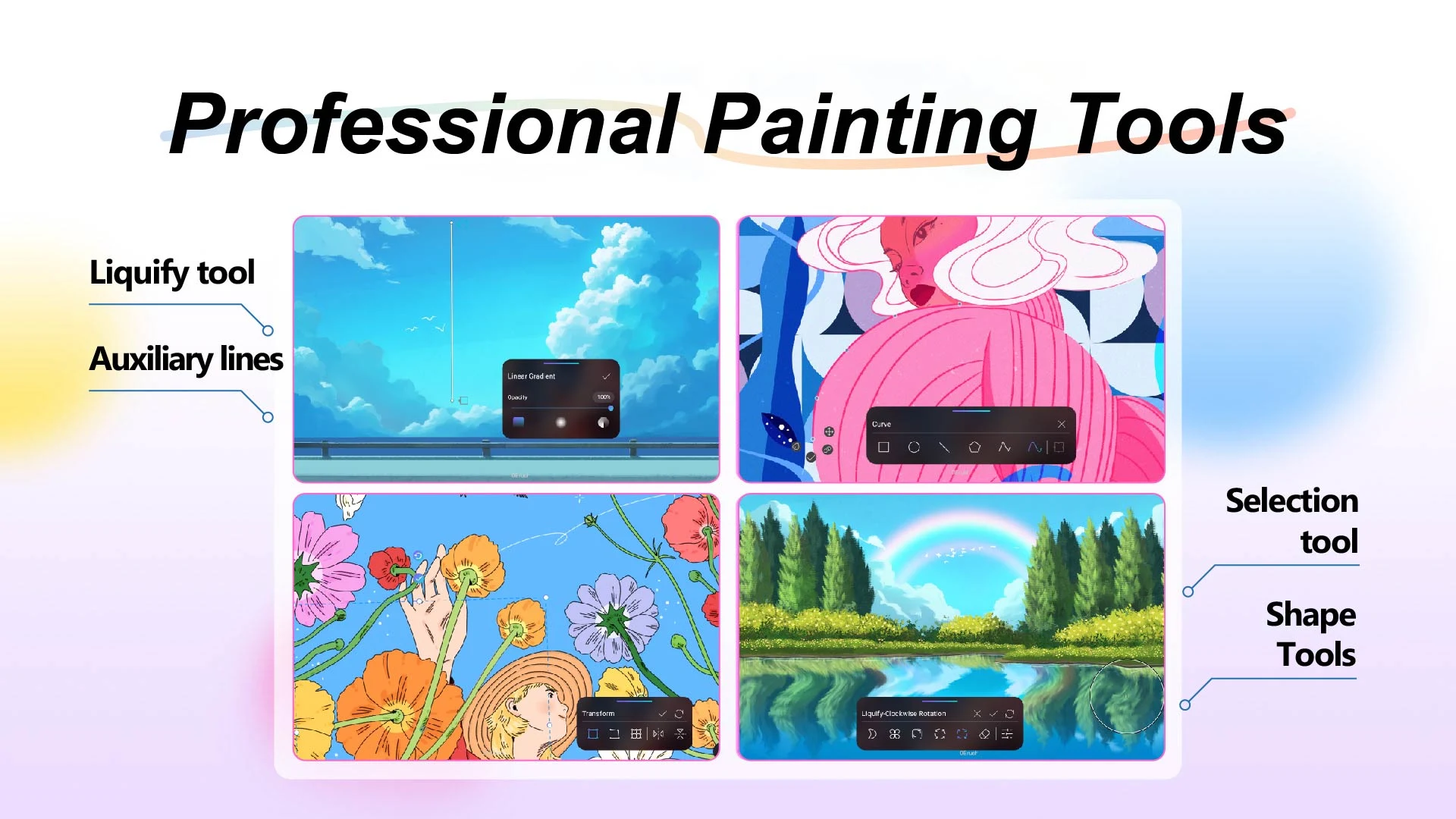
Auxiliary line: A symbol of a checkered shape. Creates a grid on the screen, which can be turned on and off and adjusted in size and shape. Very useful when you need to draw precisely or copy a picture.
Select: A symbol of a rope. Select a specified area, when drawing, only that area can be drawn, the area outside the area will not be affected, avoiding the pen stroke from encroaching on unwanted areas.
Smear: A symbol of an index finger. Works like the way you use your finger to move into an area of not-yet-dry paint in real life. The affected areas of color will spread in the specified direction, and can be blended into the adjacent area. Suitable for blending adjacent areas of color and creating an intermediate area, giving a smooth feeling between the areas of color.
Blur (dilute color): Water drop symbol. Works like the way you drop color solvent into a real-life color area. The affected color area will be lighter and fade out. Suitable for creating effects such as glow, shadow.
Deform (change shape): Square grid symbol. Helps you adjust the shape of the selected area without having to erase and redraw.
Distort (3D distortion): Distorted quadrilateral symbol. Suitable when you have drawn an object in the front direction, then want to adjust the tilt forward or backward to match the perspective.
Reference (display sample image): Picture image symbol. You can choose an image from your phone as a sample, displayed on the screen while drawing. This feature helps you avoid having to exit the application to see the sample image and then return to the application to draw.
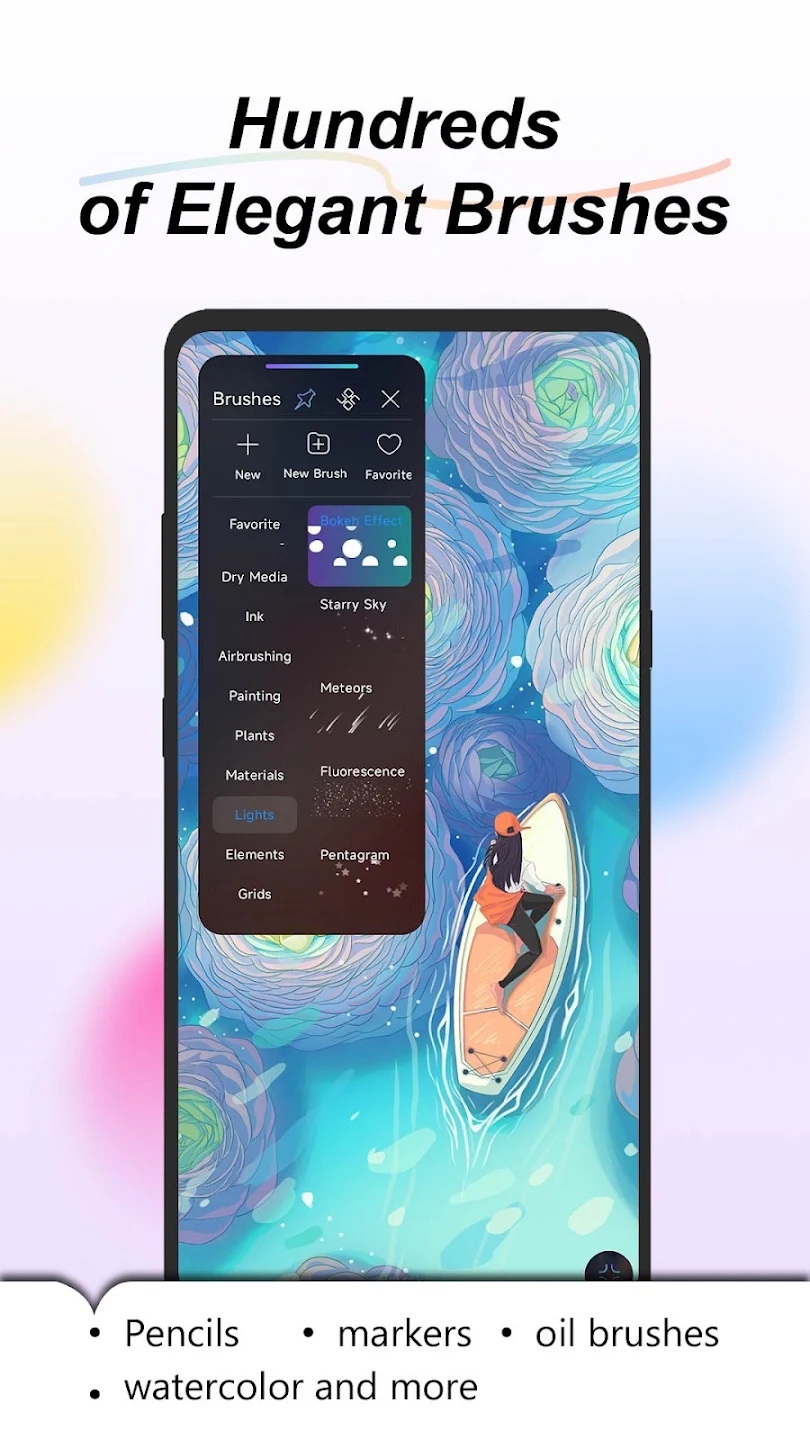
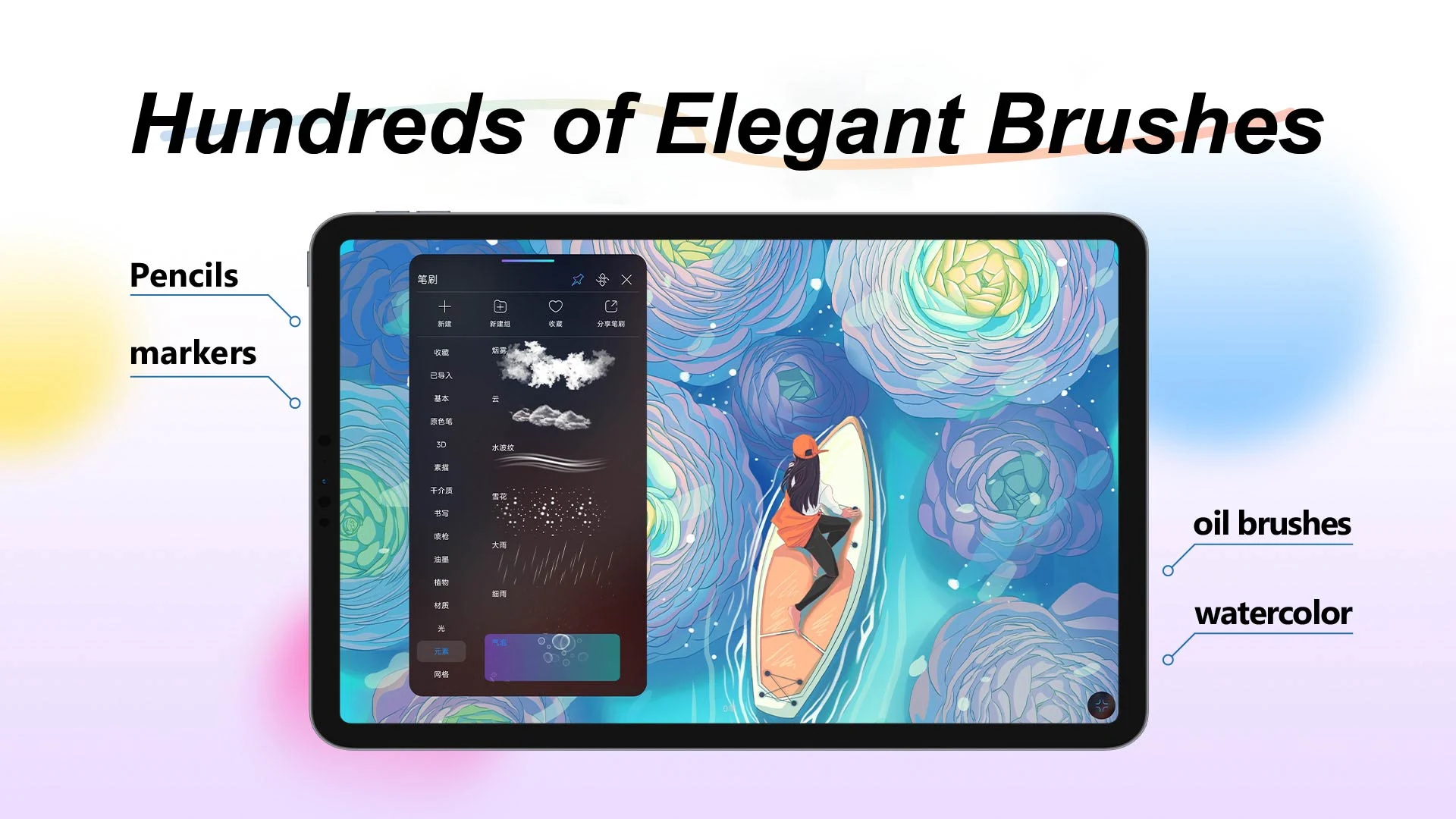
90+ Professional Brushes: Access a massive library of high-quality brushes including pencils, charcoal, watercolors, oil paints, and airbrushes designed for realistic textures.
Custom Brush Studio: Personalize your tools or create entirely new brushes from scratch using our advanced brush engine to match your unique artistic style.
Advanced Layer System: Manage your workflow with professional layer support, featuring blending modes, alpha locks, group layers, and clipping masks for complex compositions.
Vibrant Color Palettes: Choose from over 100 curated color sets or utilize the eyedropper and color wheel to create your own custom palettes for the perfect finish.
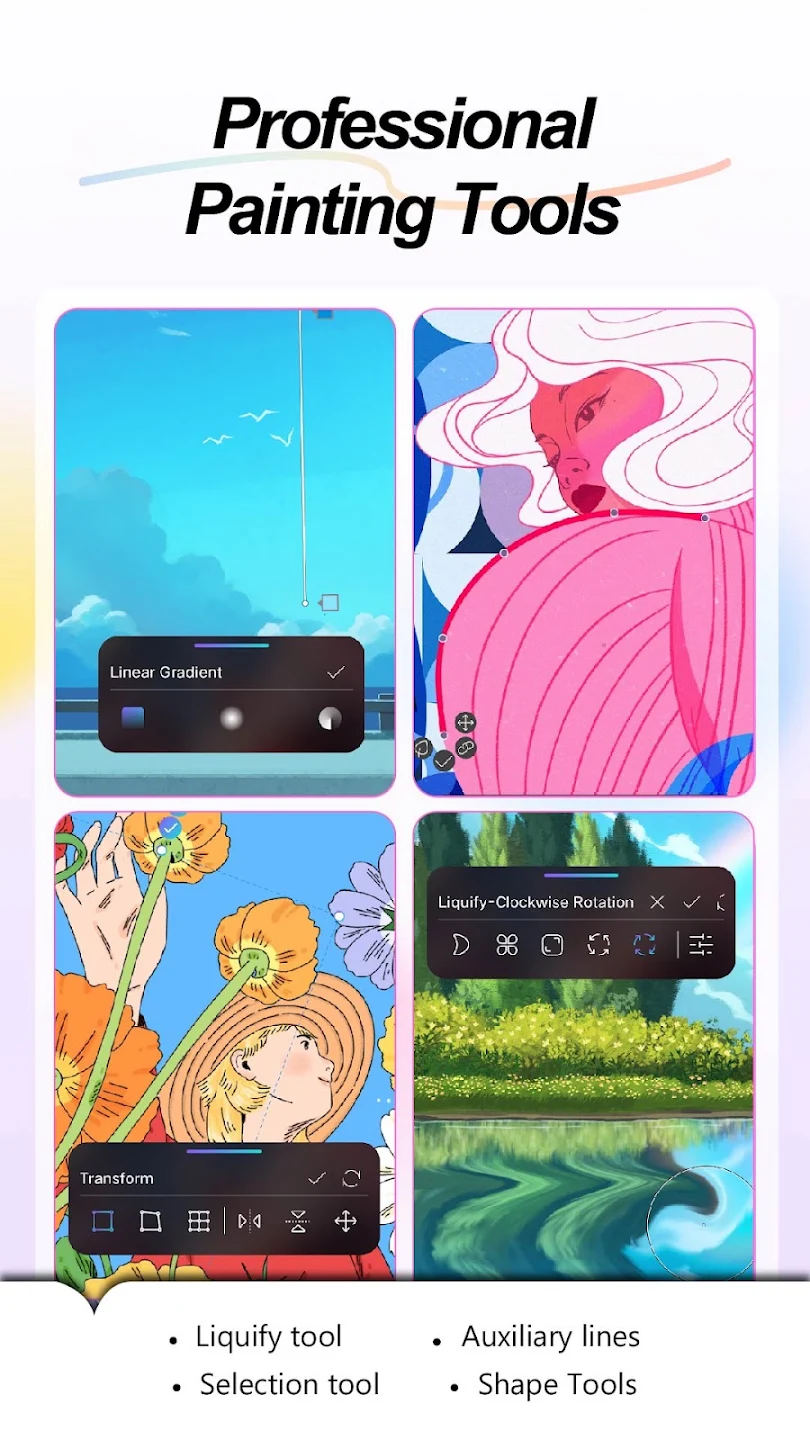
Precision Editing Tools: Utilize advanced transform tools, selection masks, Gaussian blur, and stroke stabilizers to ensure every line is smooth and every detail is perfect.
High-Resolution Export: Create detailed artworks without compromising on quality, supporting high-resolution canvases ready for social media sharing or professional printing.
Gesture operations allow you to quickly adjust the canvas and drawn content during the painting process.
1. Single finger operation
Choose from the Brush, Blend, Smudge, Eraser or Blur brushes and touch the canvas with one finger to draw.
2. Two-finger operation
①Pinch to zoom: Pinch two fingers inward to shrink the canvas, and separate two fingers outward to enlarge the canvas.
②Two-finger rotation: Pinch the canvas with two fingers and rotate your fingers to rotate the canvas.
③Two-finger click and long press: A single undo can be performed with a two-finger tap.Long press with two fingers to continuously undo recent operations.
④Pinch quickly with two fingers: When the canvas is reduced or enlarged, pinch quickly with two fingers to make the canvas automatically adapt to the screen.
3. Three-finger operation
Click the canvas with three fingers to redo it.
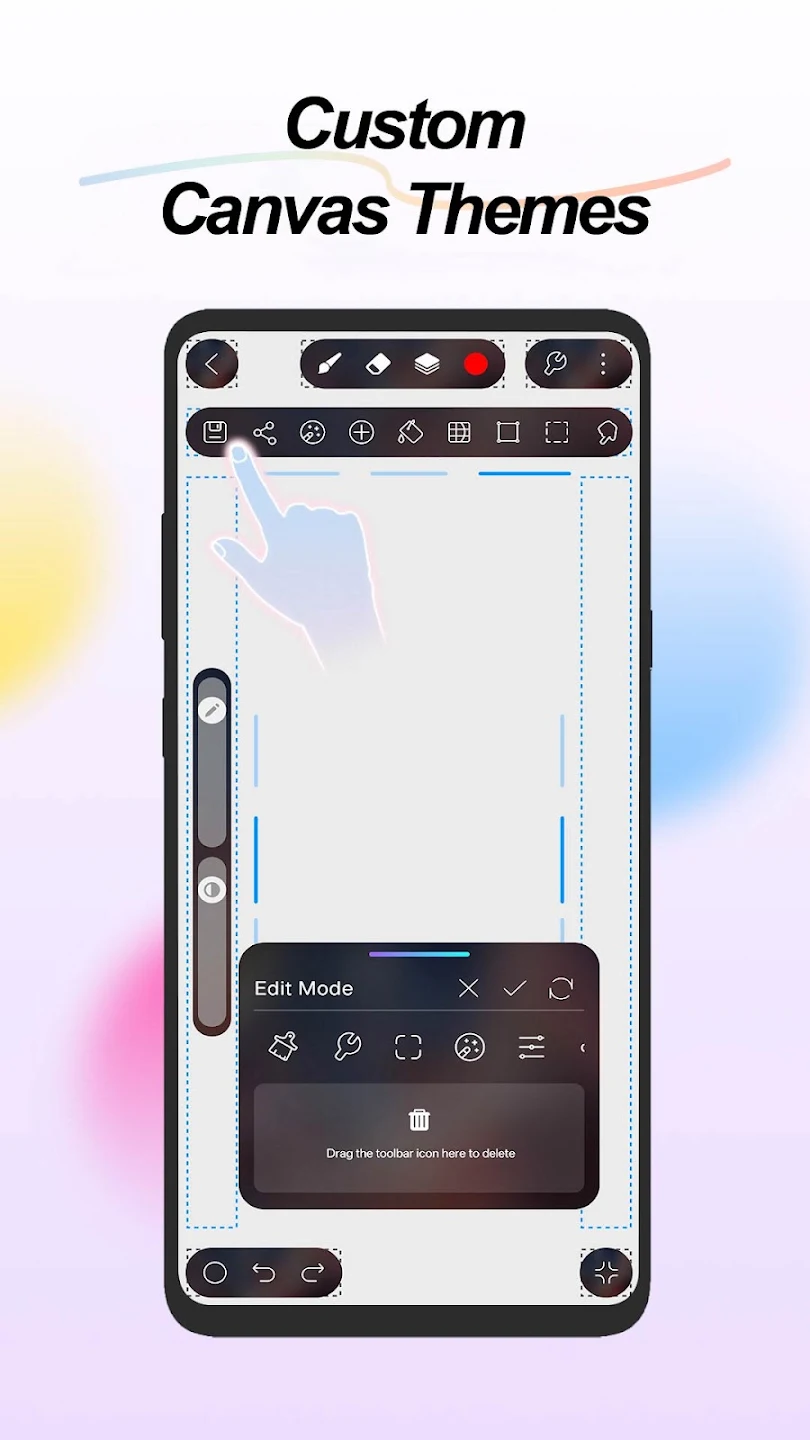
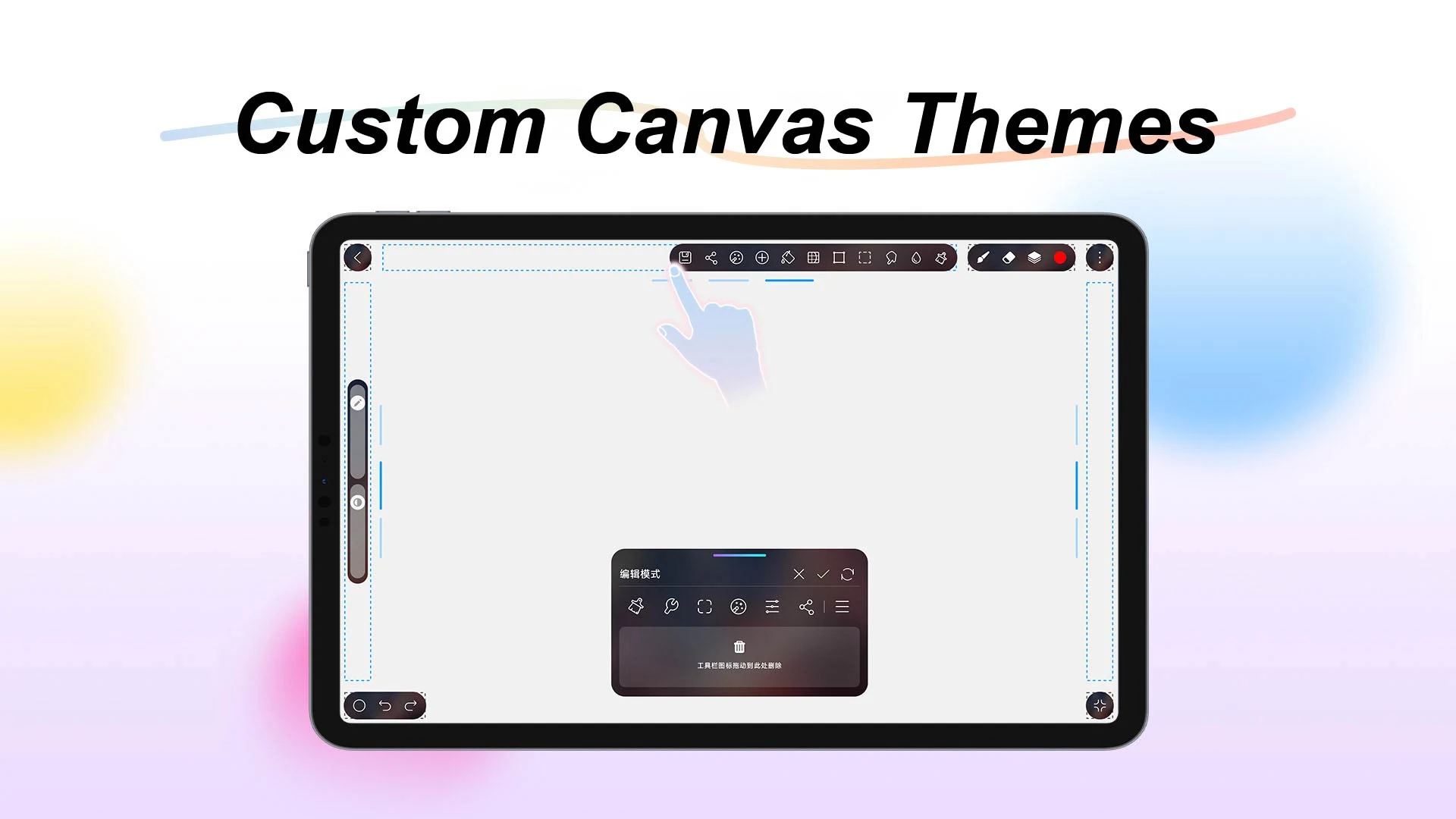
Toolbar settings allow you to freely set the order of tools in the customized toolbar, allowing you to use the tools more conveniently. The toolbar settings are in the settings of the more menu.
1. Add and remove tools: Click the icon to add tools, click again to cancel adding. Click the icon in the preset box to delete the icon, click the Done button in the upper right corner to save the changes, otherwise the changes cannot be saved.
2.Mobile icon: Long press the icon in the preset box and drag it left or right to adjust the order between the icons.
3. View icons: When there are too many icons in the preset box, you can slide left and right to view the icons. When there are too many tools in the custom toolbar, you can also slide left and right to view them.
Tool coexistence means that two or more tools can be used simultaneously.
1. Shape tools can coexist: When the shape tool is switched to symmetry, auxiliary lines, and animation assistance, the shape tool does not exit. Although it is switched to symmetry, auxiliary lines, and animation assistance, the shape function can be used at the same time.
2. Liquify tools can coexist: The liquefaction tool switches to symmetry and auxiliary lines without exiting liquefaction. Although it is switched to symmetry and auxiliary lines, the liquefaction function can be used at the same time.
3. Selection tools can coexist: A selection has been drawn, and then switched to Shape, Liquify, Symmetry, Guides, Animation Assist, Paint Bucket, and Filter. The selection does not exit. Shape, Liquify,Symmetry, Guides, Animation Assist, Paint Bucket, and Filter can be inserted, but When operating, it only has an effect on the selected area.
4. Auxiliary lines can coexist: Switching the auxiliary line to Shape, Liquify, Symmetry, Selection, Animation Assist, Gradient, Paint Bucket, Filter, and Transform will not exit the auxiliary line tool, and you can use other tools with the auxiliary line displayed.
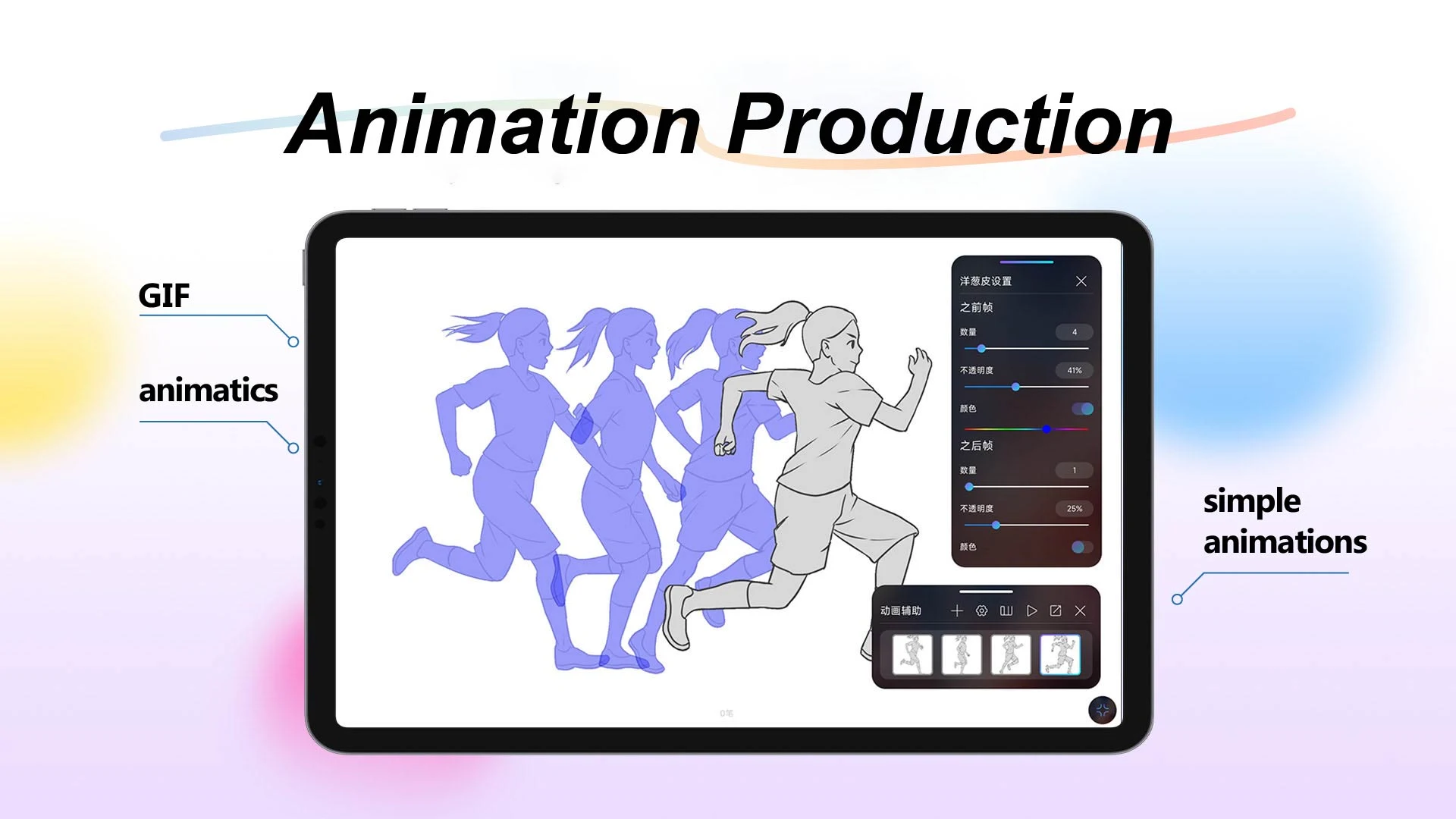
5. Animation assistance can coexist: Animation Assist switches to Shape, Symmetry, Auxiliary Lines, Gradient, Tile, Paint Bucket, Transform, Liquify, Selection, and Filter. Animation Assist does not exit, but the Animation Assist window is hidden. When other tools are closed, Animation Assist will automatically display.
I love this drawing app and it's my favorite by far. However, there are some issues with it. Sometimes when I color on a different layer, it will darken the line art. Recently when I've used the symmetry tool and move my screen around the symmetry line will move with it. My progress still gets deleted when I close the app at times and some pieces won't open at all.
I really love this app! it has a lot of features! something I would like it to have is more brushes!!! it doesn't even have a lot of ads so it doesn't bother while I draw. This is just my experience but this app made me a lot better at drawing! I enjoy a lot the app hope it gets amazing updates, tho the app is already amazing!
THIS IS AWESOME. As a digital artist I use this for the first time and it feels amazing 10/10 digital art drawing app on here, I would LOVE to see this come to PCs (I mainly use a PC to draw) it would fit great with the better pc drawing software (like procreate and krita) I do hope you guy's somehow get this to those who use a PC, I don't mind the fact that there's ads Bc you aren't having a ad tossed into your face every 5 seconds, this is a great for pro digital artist!
One of the best art apps I have used so far! but there are some things that I wish didn't happen. sometimes the screen doesn't load and just stays on the loading screen and you have to go in and out of the app multiple times just for it to load, also it has a lot of ads sometimes, that's really all, other than that it's a great art app. would recommend!
HiPaint Mod provides us with a total of 16 finishing effects of all kinds. From the typical balances of color, saturation, opacity, brightness and contrast to more sophisticated ones such as flowering, liquefaction, sharpening or Gaussian blur.As soon as we have finished the drawing or painting, to export to our device, we choose between the JPG or PNG format. It can also be shared on both PSD and HSD.
Size:131MB Version:6.3.5
Requirements:Android Votes:230
Package Name:com.aige.hipaint Signature:7666e24a435ccd51fd12655a4ba91c09
Utility apps are indispensable in our lives, making our daily routines more convenient. To help you find these apps more easily, this site has created a collection. This collection brings together a series of practical tools covering various aspects of life, work, and education, meeting all your needs. What are you waiting for? Try these apps now and make your life easier!
With the development of mobile hardware and software, many practical tool software have emerged, covering a wide range of aspects and becoming a good helper for everyone in work and life. Today, the editor provides you with a list of useful tool software downloads. These tools are not particularly complex types, and after reading them, everyone can quickly learn how to use them. Proper use can bring great convenience to life and work.
About us | Contact us | Privacy policy| DMCA
Copyright © 2026 Xiaohei All rights reserved.