SoundWire is a mobile tool that turns your device into wireless headphones. Listen to your favorite music and movies on your device wherever you are. The software guarantees clear audio and low latency during playback, providing users with a native listening experience. The software is also very easy to use; with the help of tutorials, users can easily install and use its various functions on their devices to stream real-time audio from major movie and music platforms to their mobile devices.
Wireless Audio Streaming: Send live sound directly from your Windows, Linux, or even Raspberry Pi machine to your Android device. Great for enjoying playlists, movie soundtracks, or internet radio from pretty much anywhere in your place.
Versatile Uses: It’s not just for music. Use SoundWire as a remote baby monitor, or set up your own live-streamed DJ session in another room. Any sound your computer hears can be mirrored on your phone.
Solid Sound Quality: Expect crisp audio, with support for 44.1/48 kHz stereo and options for uncompressed PCM or efficient Opus compression to fit your network.
Handy Setup: The free SoundWire Server app gets things rolling on your computer, and you’ll find the Android version works even on older devices—nice excuse to dust off that spare phone.
Flexible Network Support: Whether you’re on WiFi at home or out and about on a cell network, SoundWire adapts. For adventurous folks, it even handles setups between computers and virtual apps.
Lightweight and User-Friendly: The interface is straightforward. No tech wizardry required—just install, pair, and you’re set. If you need more power, there’s a pro mode waiting in the full version.
Super Low Latency: Got a movie or a YouTube video running on your PC? SoundWire keeps the audio closely in sync, so you won’t notice distracting delays—just don’t forget to tweak the buffer if you’re picky about perfect timing.
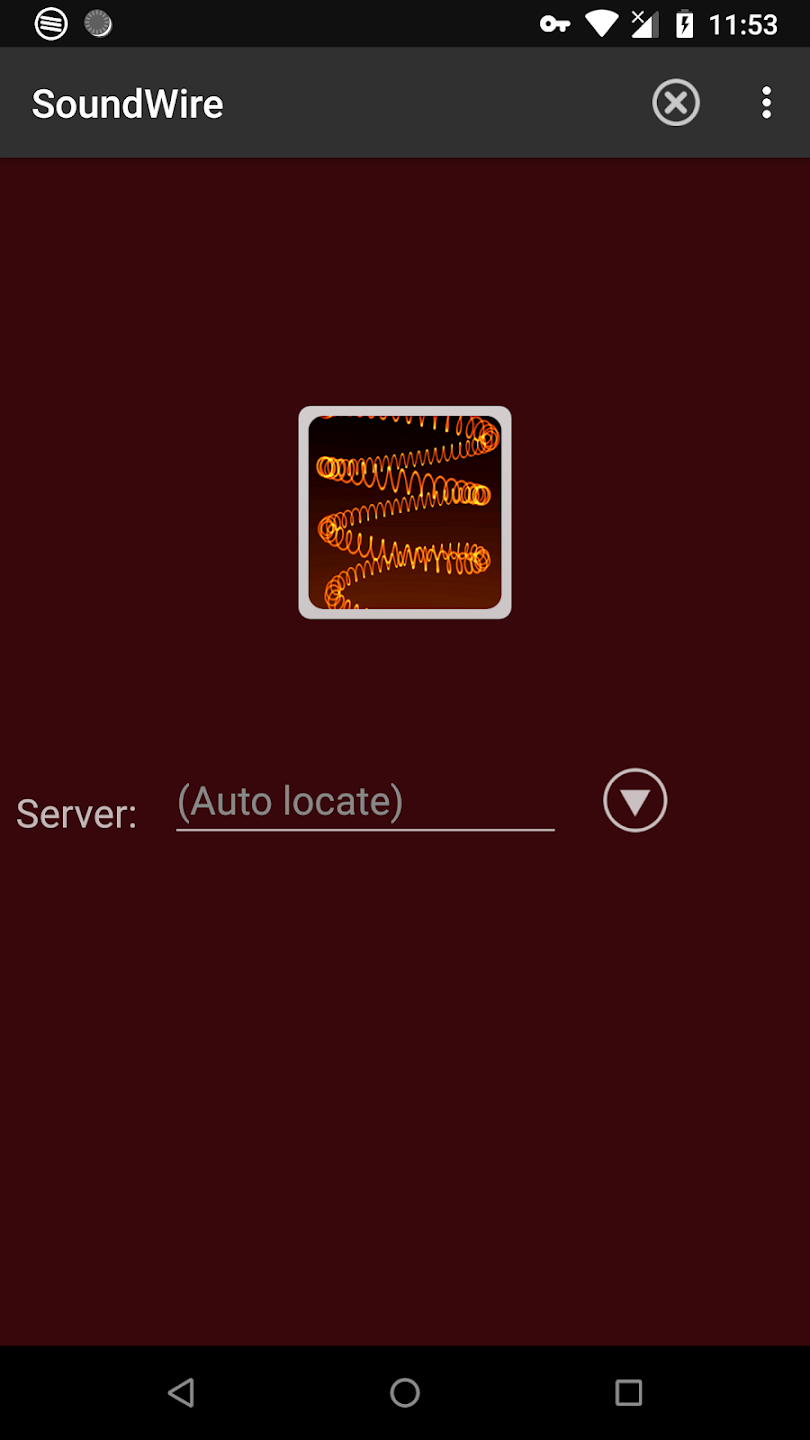
Consider activating compression in the settings! I love this app but I had issues with the sound being choppy. I hadn't noticed until now that there was an option to compress the sound, which basically eliminates the little skips, and helps lower the latency a bit. You can't use it indefinitely in the free version, but that makes buying the full version absolutely worthwhile. The latency is still not perfect but I use this app a lot.
I've always been frustrated about how far behind TVs are in terms of Bluetooth functionality, and this just fixed it. I have a laptop running Linux hooked up to my TV constantly, so I use that for media now. It's so convenient having one pair of headphones for two different devices. It does stutter sometimes, but when I'm watching stuff on Prime Video, I can't find any delay in the audio. I'm gonna use this all the time.
It did the job for the evening, some dropouts occurred due to me using WiFi connection on the server instead of the cable, but auto reconnect feature made the experience hassle free. (Should be enabled by default IMHO) There was a single, maybe 2 seconds long reminder that I was using a free version, which is acceptable. I was a little confused about compression feature being available only as a trial, which was not clearly mentioned, but not a big deal. The interface could be better.
Tried 3 wifi speaker apps before this and none of them worked or they only worked if your pc has an external soundboard, but SoundWire is great, no soundboard needed and setup is super easy, install it on pc and on your phone, click a button and you're done, if you're having latency issues lower the audio buffer size, for me it had no noticeable quality loss but the latency was gone, I love this app, it's awesome!
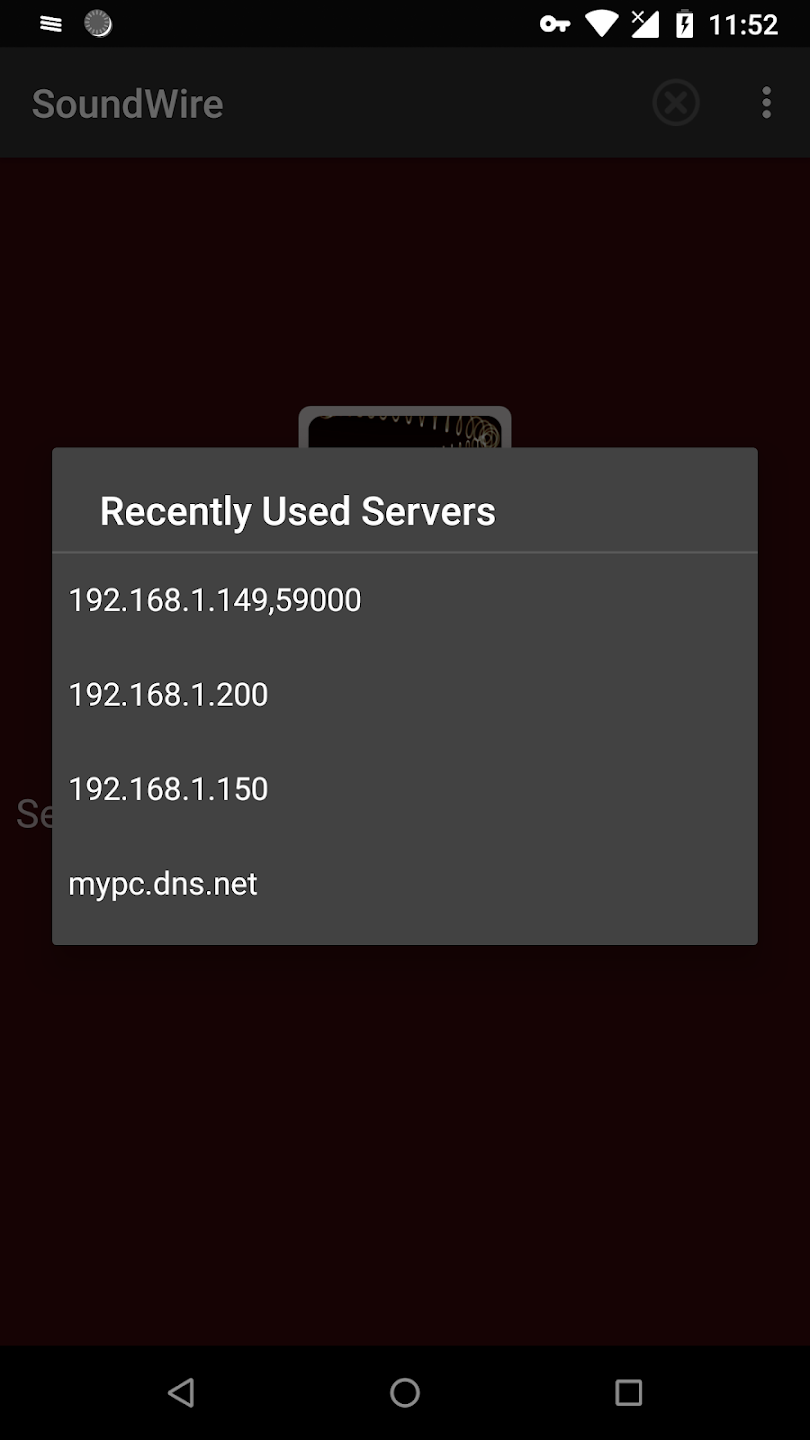
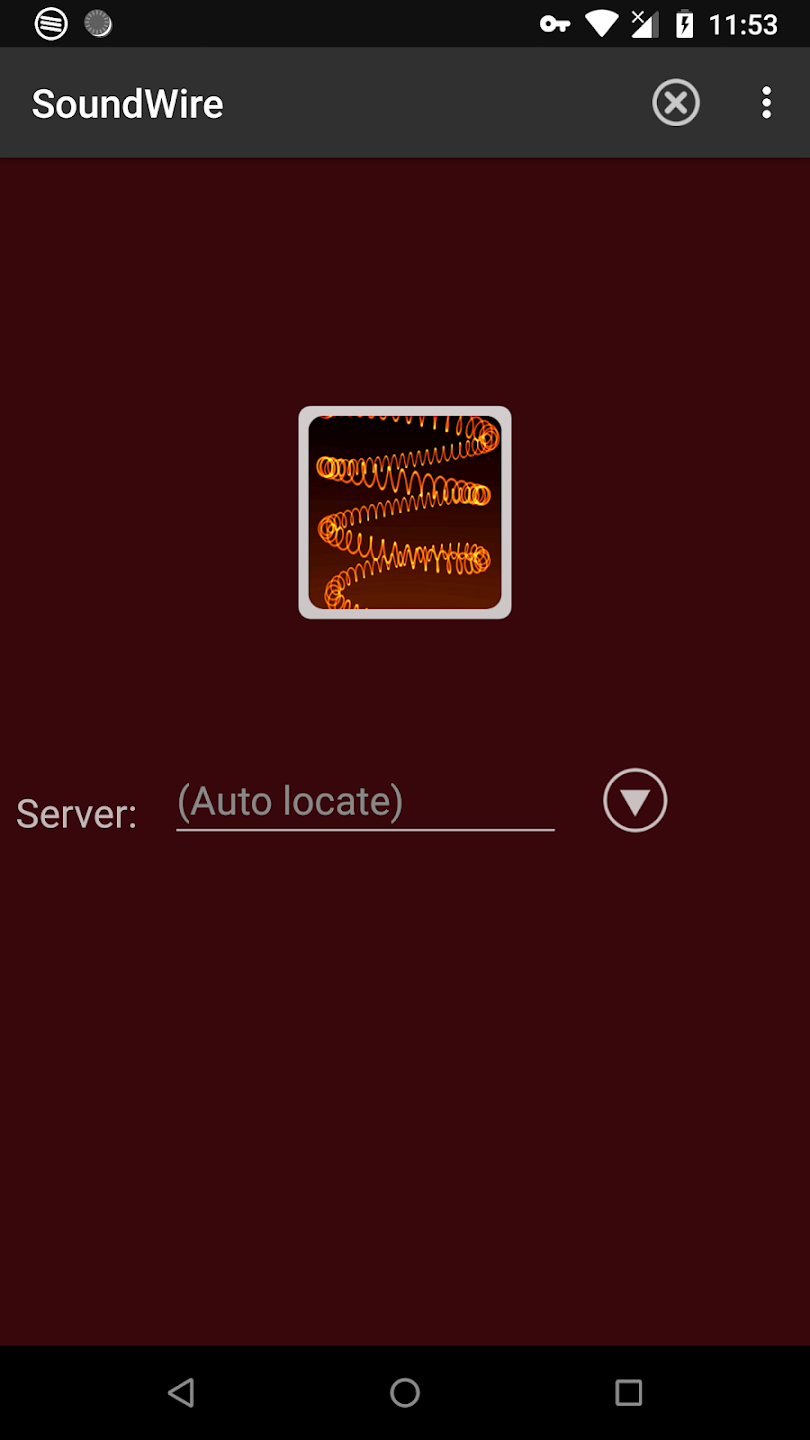
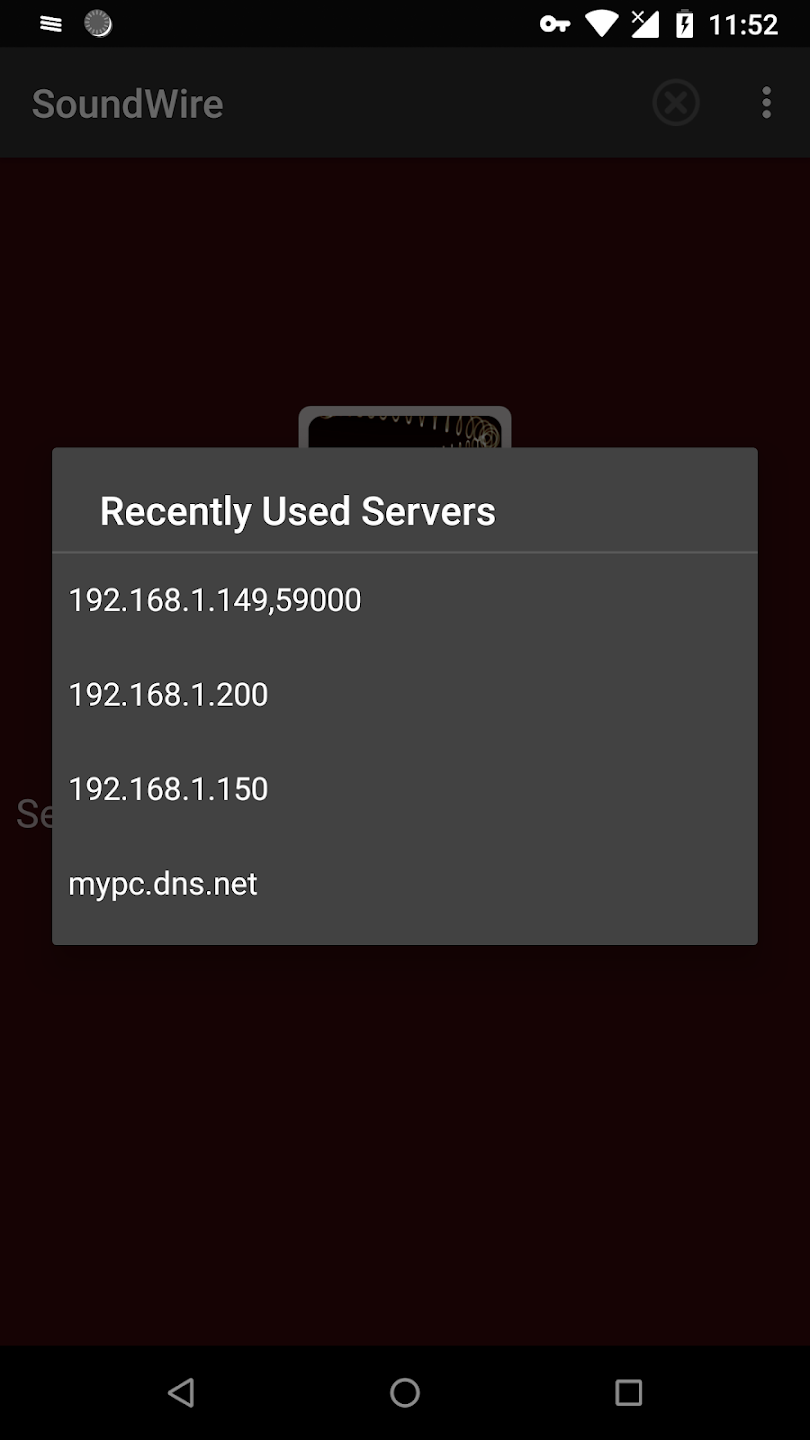
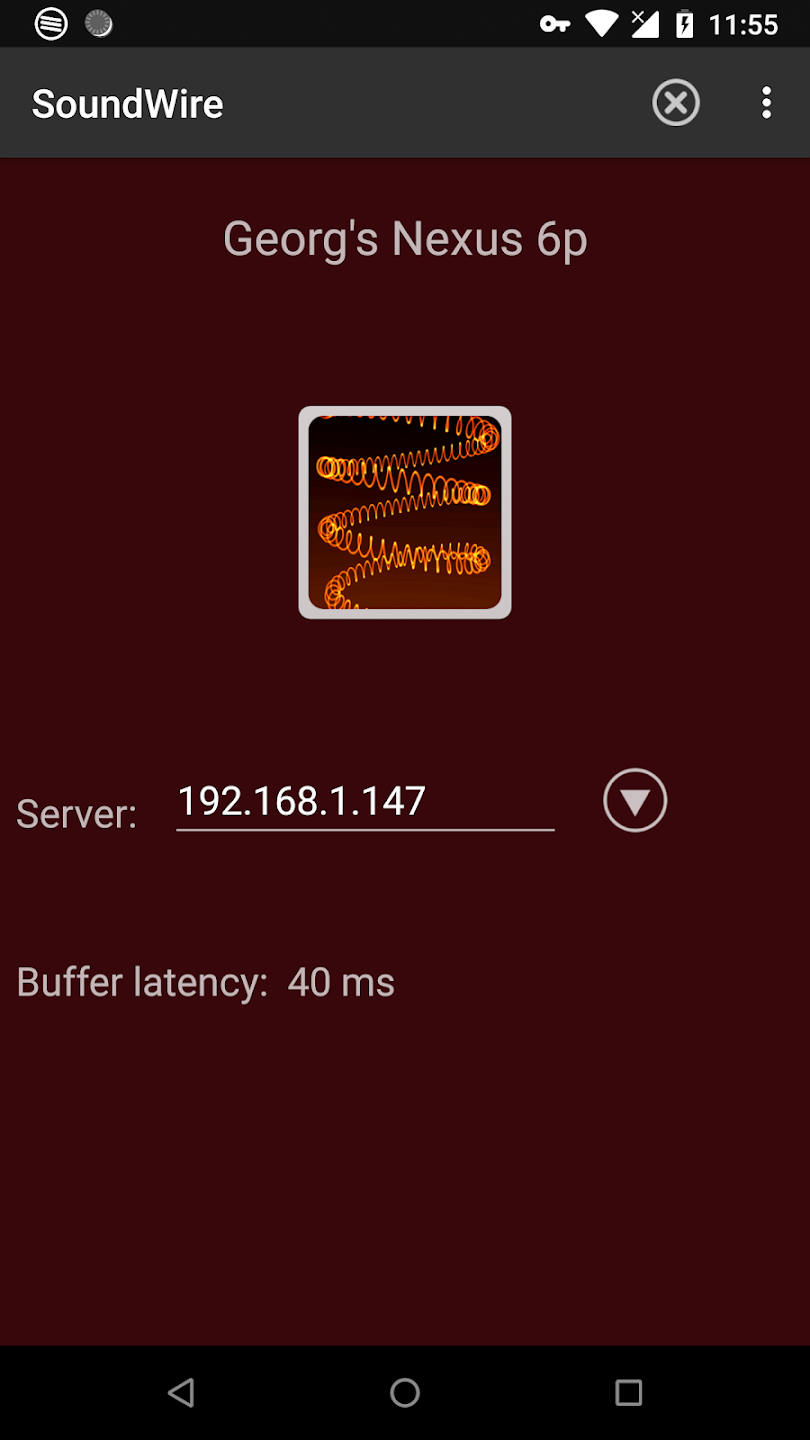
Can’t connect/locate server: Check the network connections on your phone and PC. Auto locate may not work in some cases, so enter the correct server address. In some cases the server might not display the correct address, e.g. multiple network interfaces, or server is behind a router. On Windows hover your mouse over the displayed address to see all network addresses (IPv4). Check your firewall settings on the PC. When you first start SoundWire Server it should ask you to allow a firewall exception ("Windows Firewall has blocked some features of this app"), you should answer yes ("Allow access"). You can uninstall & reinstall the server to get this question again (if it doesn’t appear the exception is in place). You may need to manually open a firewall port -- the default port number is 59010 UDP, and 59011 UDP for auto locate. Depending on your network configuration, you may need to open or forward ports in more than one place (e.g. multiple routers/firewalls). In rare cases you may need to change the port number used by SoundWire. To change the port number see Advanced Settings, below. Ensure that the server level meter shows sound being played. If the server reported an error such as “unable to activate audio device” and the level meter isn’t moving then connections will fail until you successfully select an audio input.
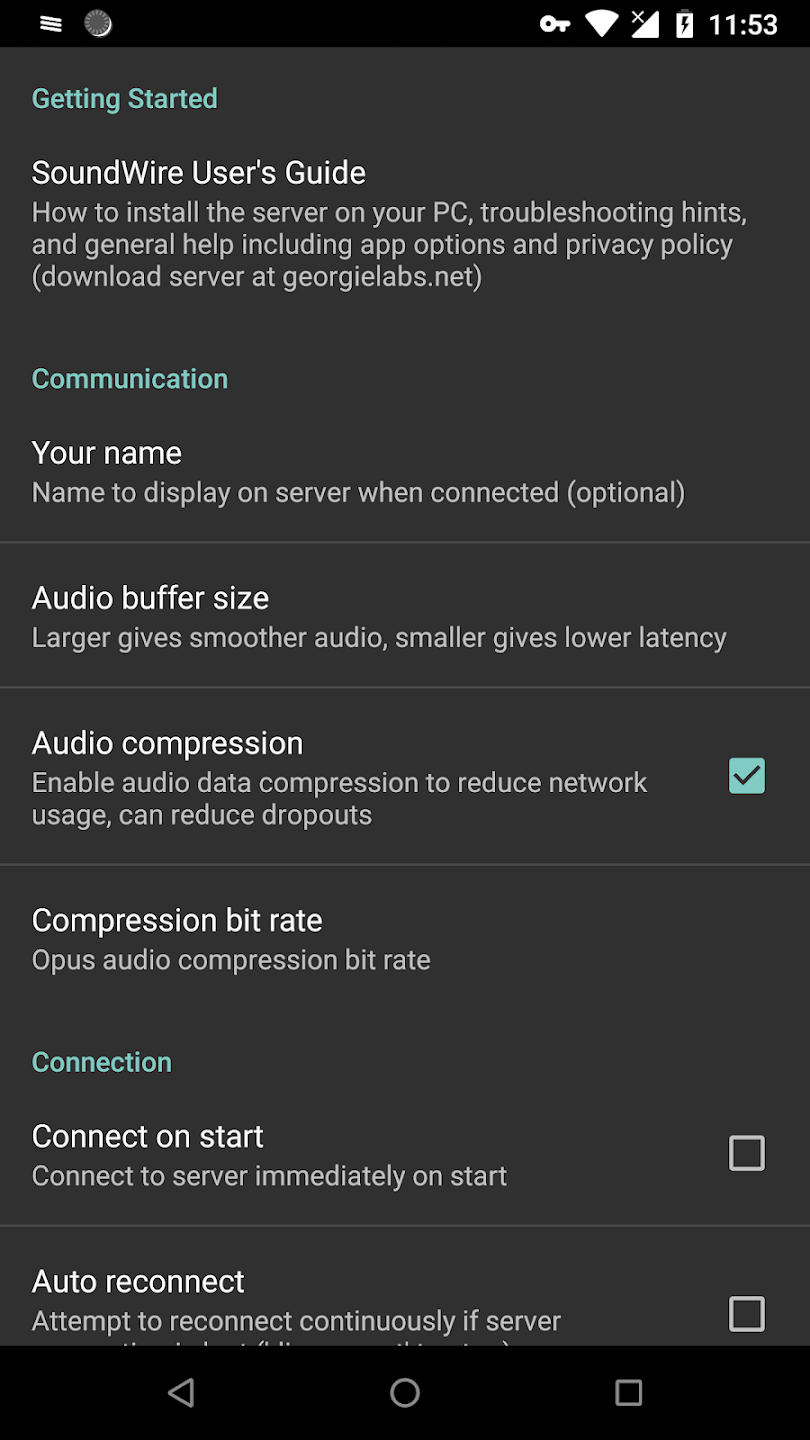
Audio is choppy: First try restarting your wireless router. Try selecting a larger buffer size in the SoundWire app settings. Also try turning on audio compression. If this doesn’t help you probably have a poor WiFi connection. You will need a fairly good WiFi signal (2 to 4 bars out of 4) to avoid choppy sound and dropouts. SoundWire shows a warning if you have 2 bars or less out of 4. Heavy network use by other computers on your home network, or high CPU use by other programs running on your PC or phone can also cause choppy sound. Some network problems like interference can cause choppy audio even with a strong WiFi signal. Try setting your wireless access point to a different channel. If your access point has simultaneous dual band try disabling one band. Try changing the Android Native Audio setting (see above under Changing SoundWire Settings).
Volume level is too low: Try turning up the volume in your PC music player software and on your phone. On Windows 7/8/10 ensure the SoundWire Server “Audio Output” level is all the way up and unmuted. If the server shows an “Audio Input” slider try turning it up. On some phones you may need to use a different audio path – try setting Android Native Audio to “Standard” in settings, then set it to “Android Native Audio” and see which one sounds best (if there is no difference keep it on “auto”). If volume is still too low on Windows 7/10 open the volume mixer by right-clicking the small speaker icon on the bottom right of your screen and selecting “Open Volume Mixer”. Find the volume control for your music player software or web browser and turn it up to the line (not higher, because that may mess up other levels). On Linux try adjusting levels in Pulse Audio Volume Control.
Volume level is too high (level meter shows red frequently or sound is distorted): Turn down the volume in your music player software. If the server shows an “Audio Input” slider adjust it first.
Equalizer doesn’t work: The equalizer may not be supported on older Android devices. In this case the Equalizer menu option won’t appear. If the equalizer option appears but doesn’t seem to work at certain times, turn on the “Disable fast Android audio path” option in app settings. If it still doesn’t work try setting Android Native Audio to “Standard” in settings.
Can’t turn down PC speakers without losing SoundWire audio: Your PC may not allow you to turn down or mute the speaker output without affecting the sound transmitted by SoundWire. If muting the speaker also cuts out SoundWire audio then you must keep the main speaker volume turned up and unmuted. In this case you can silence laptop or tablet PC speakers by plugging something into the headphone jack like a connection cable or spare headphones. On Linux you can silence speakers by selecting profile “off" in the Pulse Audio Volume Control configuration tab.
Audio is smooth but quality is bad or not enough bass (server on laptop or tablet): Your PC may be processing audio in an undesirable way, for example laptops may reduce bass to avoid overloading tiny built-in speakers. To fix it go into the Windows Sound control panel, playback device properties, and turn off all sound effects and enhancements like SRS, e.g. Realtek Audio Manager. Also if compression is enabled in the SoundWire app make sure the bit rate is set to 128 kbps or higher. If you've ever turned on the Android equalizer/bass boost/surround in SoundWire then open the equalizer controls (menu > Equalizer) and turn it off. On some phones you may need to use a different audio path – try setting Android Native Audio to “Standard” in settings, then set it to “Android Native Audio” and see which one sounds best (if there is no difference keep it on “auto”).
SoundWire is useful for music, videos, online lessons, movies, and general PC audio. You can play sound from apps like YouTube, Spotify, media players, browsers, or games on your computer, then listen through your Android device over Wi-Fi. It is handy when your laptop speakers sound weak or you want audio in another room without moving the computer.
Size:5.34MB Version:3.2
Requirements:Android Votes:430
Package Name:com.georgie.SoundWireFree Signature:c624b401e00eb009ddd3732bf1ffa09f
Transform your mobile device into a powerhouse of efficiency with these handpicked essential tools. Whether you need professional-grade photo editing, seamless file organization, smart task management, or real-time weather updates, our curated selection of premium apps delivers unbeatable performance. Streamline your daily routine, automate repetitive tasks, and boost your productivity with intuitive interfaces and powerful features. Designed for both professionals and casual users, these editor-approved applications will revolutionize how you work and play. Don't settle for an ordinary phone - upgrade your digital experience today and unlock your device's full potential!
With the development of mobile hardware and software, many practical tool software have emerged, covering a wide range of aspects and becoming a good helper for everyone in work and life. Today, the editor provides you with a list of useful tool software downloads. These tools are not particularly complex types, and after reading them, everyone can quickly learn how to use them. Proper use can bring great convenience to life and work.
About us | Contact us | Privacy policy| DMCA
Copyright © 2026 Xiaohei All rights reserved.