Adobe Scan is a user-friendly document scanner that supports batch scanning. With just a click, it can convert multiple documents, ID cards, notes, business cards, etc., into PDF files, and allows for editing and format conversion according to your needs. During the editing process, users can generate summaries with a single click and leave annotations to record their inspirations. Users can preview the before-and-after effects at any time and quickly export completed documents to their devices or send them to friends. The software provides real-time file security protection, ensuring safe use.
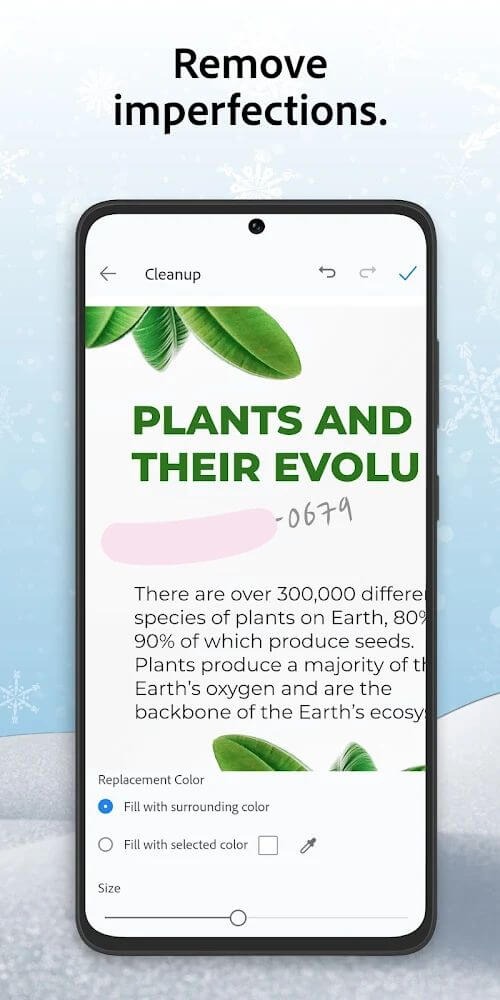
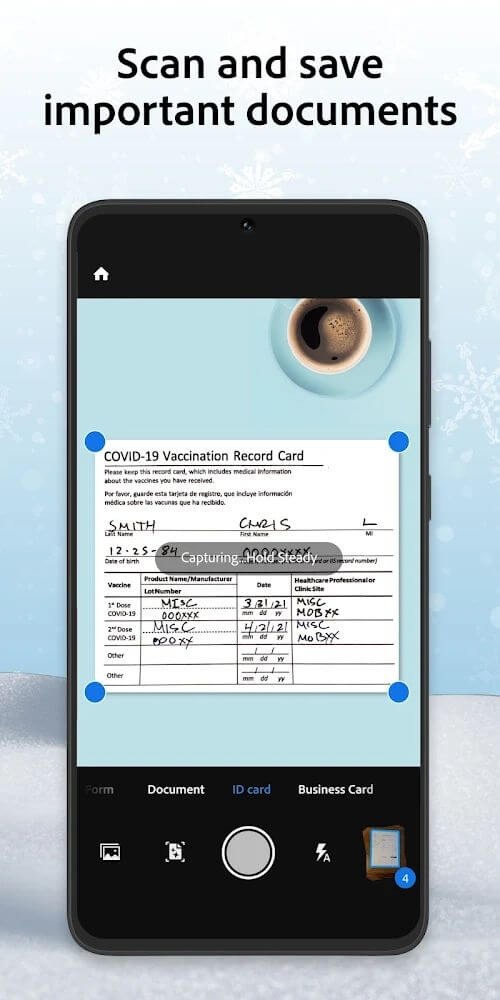
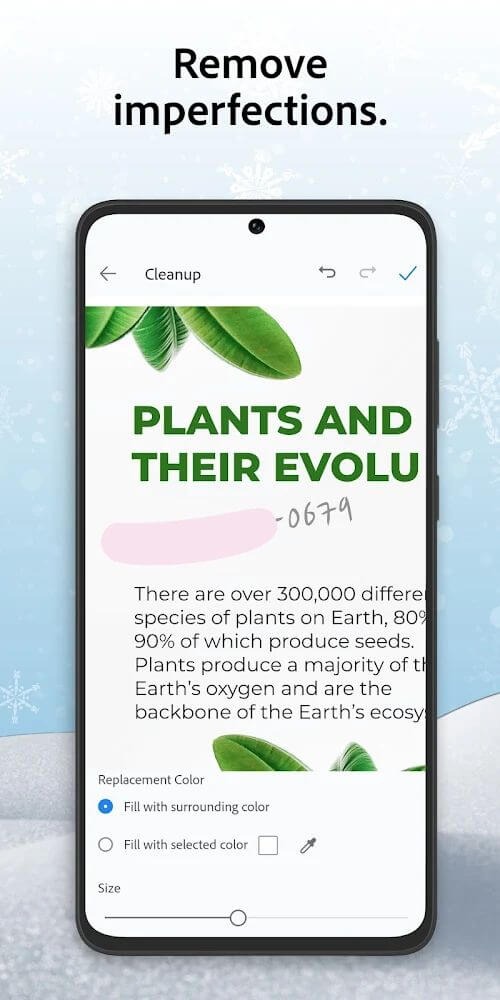
Cleaner Scans with Editing Tools: Adobe Scan focuses strongly on making captured pages look readable. Automatic edge detection finds document borders, while perspective correction and straighten tools help fix pages taken from an angle. This matters most when scanning on a desk, in a classroom, or in a workplace where perfect lighting is not always available.After capture, users can crop, rotate, resize, adjust brightness and contrast, apply filters, and reorder pages. The Magic Eraser and Cleanup tools are especially useful for removing fingers near the edge, shadows, stains, creases, glare, small marks, or handwriting that should not stay in the final scan. Results still depend on the original photo quality, so flat placement and steady lighting can improve the final PDF.
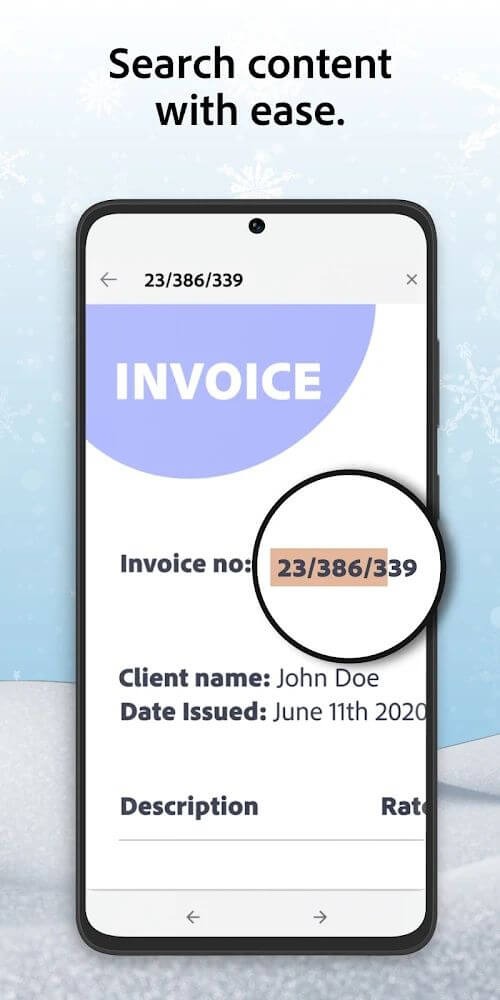
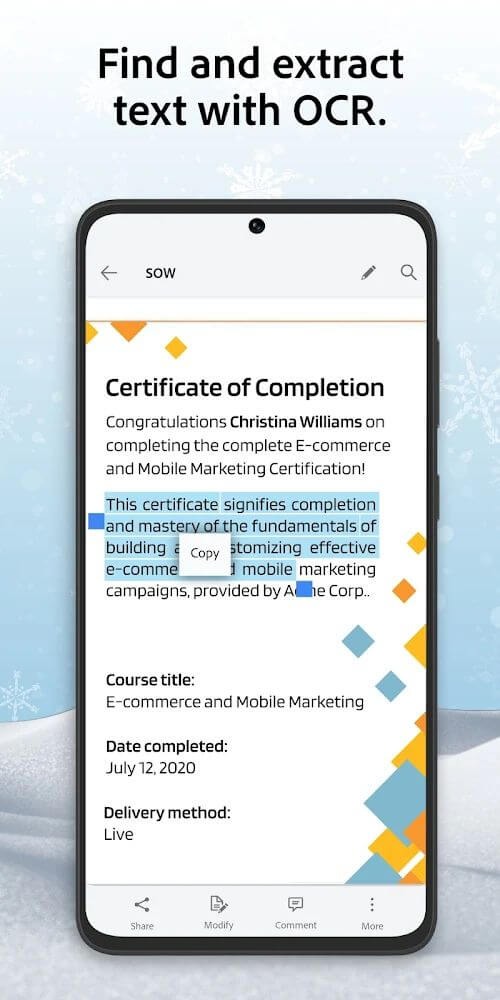
OCR for Searchable Text: Adobe Scan includes OCR, so scanned text becomes easier to search, copy, edit, and reuse. This feature helps when a user scans printed study material, meeting notes, forms, or business documents and later needs to find a name, date, invoice number, or phrase without reading every page again.The OCR support also makes scanned documents more useful beyond simple image storage. Text from a scan can support follow-up work, such as copying details into another document or checking information from a long file. Some higher OCR capacity is tied to premium options, so users with frequent large scans may need to consider whether the free level is enough.
AI Summary and Assistant Tools: Adobe Scan adds AI Assistant and Generative Summary features for users who need to understand scanned content faster. These tools can pull key points from scans, answer follow-up questions, and help draft content based on the scanned material.This is helpful with long documents, dense notes, or multi-page handouts where the user wants a quick sense of what matters first. For example, a scanned meeting note can become easier to review before sharing, and a long printed article can be checked for main ideas before deeper reading. These features are most useful when the scan is clear and text recognition works accurately.
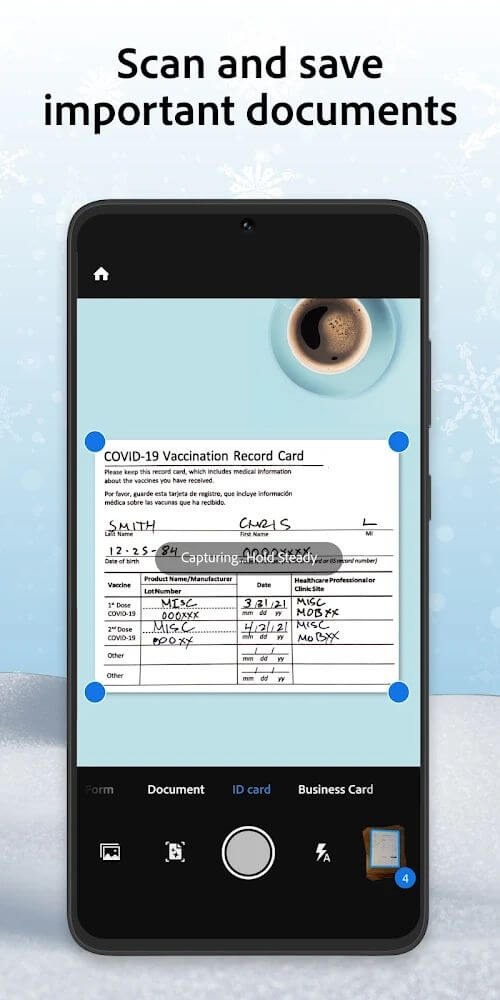
Scan Anything to PDF: Adobe Scan is the easiest way to snap and scan documents, receipts, and business cards. With Adobe Scan, you can create portable PDF files and share them easily on the go. With Adobe Scan’s streamlined workflow, you can scan anything with your mobile device’s camera or capture a photo of a whiteboard or sketch you drew on paper, then quickly convert it into an editable file that can be shared across devices and apps like Acrobat DC or InDesign CC.
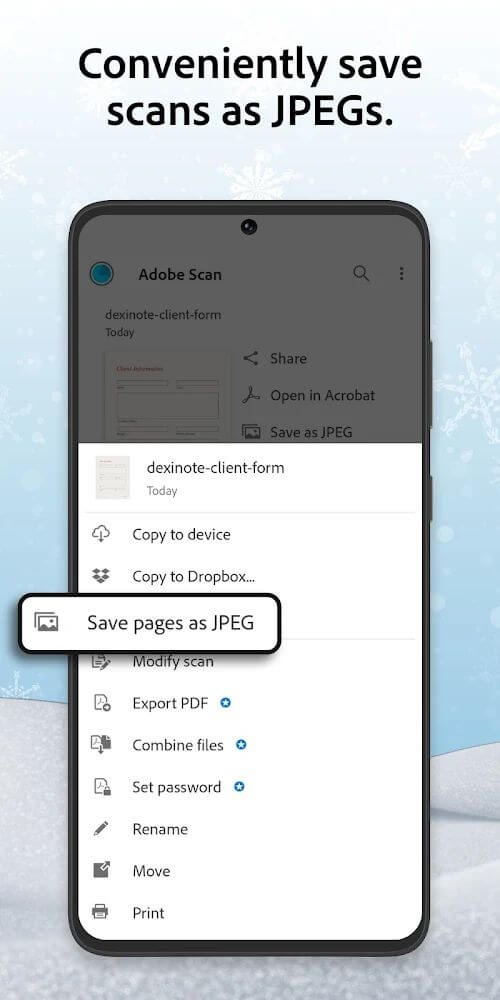
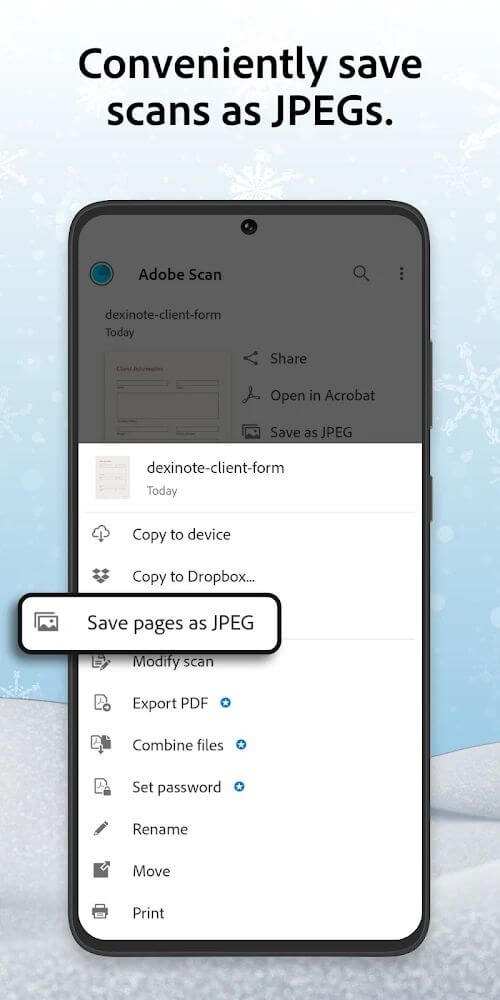
Save Scans as JPEGs or Copy them to your device: Once you’ve finished scanning and adjusting your document, you can save your scan as a JPEG or copy it to your device. To do this, tap the button in the top right corner of the screen. You’ll then see options for which device to save the scan to (if applicable) and whether or not to include its title or tags. Select one of these options, confirm by tapping “Done,” and Adobe Scan will complete its task.
Apply Filters to Scan: Applying filters to a scan is an easy way to improve the quality of your image. Filters include black and white, grayscale, and color. They can be used to make a scan look more artistic or add contrast so that details are easier to see in darker areas of the scan. The application of filters can also help to remove shadows, which can make a scan easier to read. You’ll want to apply the filter before you save your image as a PDF to keep it in its original format.
Choose Page Layout and Size: You can choose the page layout by tapping on the arrow icon in the toolbar. You must select whether you want a single, double or multiple-page document. The same options are available when selecting the page size: you can choose from Letter, Legal and A3+. You can also create custom sizes by pressing ‘Custom’ and entering your dimensions. You can also modify the orientation of your scan by tapping on ‘Orientation’ in the toolbar and selecting Portrait or Landscape mode. If you need to rotate pages after scanning them, go back into this menu and choose which way round they should be when viewed in Adobe Scan (the default is ‘Auto Rotate 180°).
Still Absolutely Loving It! Don't know what I'd do without it! Easy to use, easy to save, & easy to send/share wherever you need to!! If you need to turn something into a pdf then go to scan & add your photos to a scan,t then save it to a PDF.
This is honestly one of the best apps I have ever used. This is the first time I am taking the time to rate an app because it truly deserves appreciation. It has been genuinely helpful for me and made things much easier. I am really thankful to the developers for creating such a useful and amazing app. The experience has been wonderful, and I highly recommend it to everyone. Thank you for making something so helpful! Please keep this app free from unnecessary ads like many other apps.
brilliant app. It is convenient free app for occasional paper document scanning. the quality and result is excellent. document is clear, no shadows or uneven spots. easy to use, intuitive interface. no intrusive ads with pushy non skippable ads when you have to watch ads on any click.
This is the best scanning app on Android. I have been able to keep all my documents and still retrieve them on four different devices. I have loved the simplicity of the UX from the first time I downloaded it.
Please keep this free basic app around forever, its great to use every now and then to take pics of posted notices I see, does a great job in auto finding the 4 corners of the page and auto cleaning of pages in making easier to read Have no need for pro version, not a heavy user.
How can I ensure my scanned files are saved and accessible on all devices?
To make sure your files are accessible across all devices:Always verify that you are signed into the same account on Adobe Scan and any other Adobe applications you are using, such as Adobe Acrobat or Adobe cloud storage.After scanning, ensure that you select the Save PDF option and wait for the file to fully sync to the cloud before closing the app.Regularly check your files in the Adobe cloud storage to ensure they are uploaded and accessible.
How do I prevent large scans from getting lost or failing to upload?
For large or multi-page documents, follow these best practices to avoid upload issues:Break large documents into smaller scans if possible to prevent upload errors.Ensure you are on a stable Wi-Fi or internet connection before scanning and uploading.Don't exit or close the app until the upload to Adobe cloud storage is fully complete.Keep a backup of documents' images by activating the Save originals to Photos option in the Scan app under Settings > Preferences.
Is the Adobe Acrobat Reader mobile app related to Adobe Scan?
Adobe Acrobat Reader allows you to create, edit, e-sign, and manage PDFs. With the integration of the Reader mobile app and the Scan app, you can edit, annotate, fill, and sign PDFs created with Adobe Scan.
Can I scan and import business cards?
Yes, you can easily scan business cards on Scan for Android or iOS. It allows you to scan and automatically import business cards into your device contacts, without having to type them in. You can scan multiple business cards as a multi-page scan, and select the ones you want to import.
Why are my scanned documents missing from Adobe Scan?
Your scanned documents might be missing due to app crashes, syncing issues, or because you are logged into a different account. To resolve this:Ensure that you are logged into the same account on both Adobe Scan and Adobe cloud storage. Learn how to solve Adobe account sign-in issues.Ensure correct account access when logging in with Apple ID.When you hide your email when logging in with Apple ID, a masked address creates a separate account, leading to potential confusion. To avoid this, show your original email to link existing accounts, or remember your login choice.Visit Adobe cloud storage and go to Documents > Scans to check if your documents are saved there.If the files still don’t appear, check that no files are still uploading to the cloud. Then, try restarting the app or your device, and clear the app’s cache to refresh its data.
For the record, Adobe Scan is the most reliable mobile scanning application in the market trusted by millions of smartphone users worldwide. With a fascinating scan service that produces high-quality PDFs or JPEGs, you can fully trust it to attend to your professional and academic needs including digitalize books, business cards, and receipts. In addition, you can securely store files on the cloud and share them instantly with anyone.
Size:167.0MB Version:26.08.10
Requirements:Android Votes:398
Package Name:com.adobe.scan.android Signature:4817ede1a79ed8a76582c840ca91d622
Office Apps is a comprehensive and user - friendly platform that aggregates a wide array of office - related applications, catering to the diverse needs of modern professionals, students, and anyone who engages in office - based tasks. Whether you're working on a crucial business project, preparing academic papers, or handling daily administrative work, this aggregation page serves as your one - stop - shop.
The complete collection of office software is compiled based on user needs and referencing the popularity of major computer application stores. This collection selects various useful computer office software for users from multiple aspects such as office suite, communication and collaboration, email management, note management, cloud storage, download and decompression, etc. These software can meet your various document processing needs, making your team collaboration smoother, and conveniently managing your emails and keeping various meeting records. Download various materials and documents needed for office work. This collection of office software commonly used by professionals can meet all needs. Welcome to download and experience it!
About us | Contact us | Privacy policy| DMCA
Copyright © 2026 Xiaohei All rights reserved.