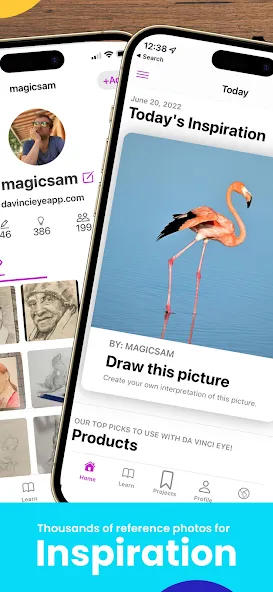
Da Vinci Eye is a community designed specifically for creators. It offers detailed video tutorials to help users produce beautiful artwork, alongside an active community where members can explore a diverse range of styles and projects. Users can share their own drawing techniques and memorable creative moments, allowing everyone to draw inspiration, refine their skills, and produce even better work. The app also features a video recording function, enabling you to capture your creative process and share it with friends—who, in turn, can learn valuable drawing insights from your work.
With Classic mode, it’s important that your device does not accidentally move. If you are using a tall glass, its best if your phone has a case because if not, it will slide around. If using a phone stand, we highly discourage the use gooseneck style stands as this type of stand constantly wobbles making it very difficult to draw.
Open the Da Vinci Eye app to the Home Screen
Press the “Draw” button on the top right corner of the Home Screen
Select a picture you want to draw, then select “Classic Mode“
Place your phone on a tall glass (or a phone stand)
Position your glass on top of your paper
Press the “Move” button on the bottom left corner of the screen and adjust your picture to be the right size and position you would like on the paper.
Pro Tip: By default, the “Picture” option is selected but you can also select “Camera” to move the camera instead of the picture!
Press the “Move” button again to lock the image in place
Press the “Opacity” button and adjust how transparent you would like the reference image to be
Look at your phone’s screen; you should see your image and the paper at the same time.
Now you can start tracing the picture!
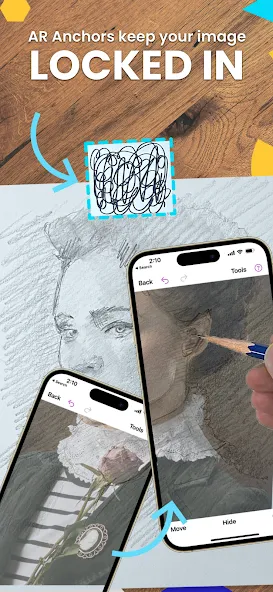
With AR Mode, you can move your phone around and you don’t have to worry that your drawing will be messed up. As long as you anchor is in the same place you can instantly resume drawing or painting without having to place your image back in the same spot.
Open the Da Vinci Eye app to the Home Screen
Press the “Draw” button on the top right corner of the Home Screen
Select a picture you want to draw, then select “AR Mode“
Now it’s time to create your anchor! Press “Tools” > “AR” > “Anchors” then hit the “+” sign. Follow the instructions on the screen to make your anchor
Tape your anchor (so it stays in place) to the top part of your paper
Place your phone on a tall glass (or a phone stand). Now, if your anchor is in view of your camera, your reference image will be a superimposed relative to its position.
To position your reference image on the paper, you should pinch the screen to bring the full camera feed into view. Then press the “Move” button to move your image relative to the anchor. You can enlarge, shrink and rotate the image.
Pro Tip: By default, the “Picture” option is selected but you can also select “Camera” to move the camera instead of the picture!
Press the “Move” button again to lock the image in place
Press the “Opacity” button and adjust how transparent you would like the reference image to be
Look at your phone’s screen; you should see your image and the paper at the same time.
Now you can start tracing the picture!
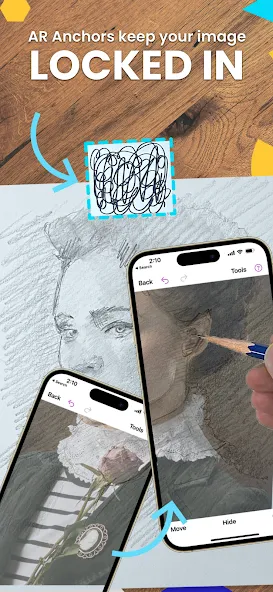
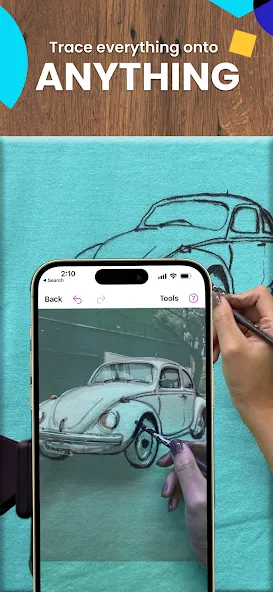
Camera-Lucida Overlay: Set your phone or tablet above your page and view your subject and paper together—like a modern camera lucida—so you can trace or spot-check as you go.
Zoom and Scale: Pinch to zoom for tiny details or resize the reference to fit any surface, from sketchbooks to large canvases.
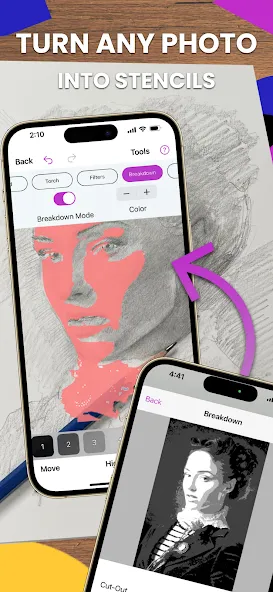
Breakdown Mode: Convert your image into clear value layers to map highlights, midtones, and shadows with confidence.
Strobe Compare: Toggle the reference on and off to quickly align features and catch little mistakes before they stick.
Step-by-Step Lessons: Guided exercises teach fundamentals you’ll keep using even when you draw without the overlay.
In-App Tutorials: Watch quick how-tos and a curated stream of drawing videos right inside the app.
Bring Your Own Images: Import photos from your device and even mix multiple references into a single piece.
Creative Extras: Design intricate lettering, blend subjects for imaginative mashups, and try anamorphic effects that look 3D from the right angle.
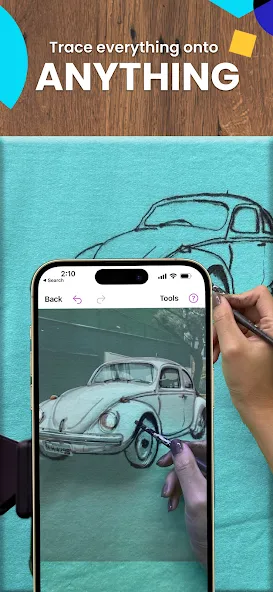
In a world where digital tools are often met with skepticism, the DaVinci app stands out as an exceptional and misunderstood resource for artists. While some may dismiss it as a mere tracing tool or a form of "cheating," a closer look reveals it to be a sophisticated and versatile instrument that challenges conventional notions of artistic integrity. In fact, this app is a modern-day descendant of a tool used by the great masters themselves. The camera lucida, a device employed by historical figures like Audubon and Vermeer, served a similar purpose, demonstrating that using aids to master perspective and form has a long and respected history in art.DaVinci offers a remarkable level of flexibility, adapting to the user's needs and skill level. You can use it as a foundational guide for simple line work, a detailed reference for advanced shading, or a dynamic palette for intricate coloring. The full breadth of its capabilities exists within a single, cohesive offering. Once I moved past the fear of being labeled a "tracer" or "copier," I was able to fully embrace its potential. This shift in perspective allowed me to create art that surpassed my own expectations, pushing my boundaries in ways I hadn't imagined possible.Far from being a shortcut that hinders artistic growth, the DaVinci app is a powerful training tool. By providing a framework for understanding complex shapes, proportions, and light, it helps to train your eye and hand coordination. It builds the foundational skills necessary to eventually draw independently, without the need for the app. The true value of DaVinci lies not in what it allows you to copy, but in what it teaches you to see.
This is definitely my favorite app! I’ve had so much fun with it and areas of my art have vastly improved. I now get drawings with tricky compositions right on my first try. It’s especially helpful when drawing animals and people—getting them properly proportioned, with eyes exactly where they belong, and getting the shading just right. The breakdown mode for shading is fantastic, and the strobe feature is also extremely helpful. Any problems I’ve had have received clear and friendly help—and incredibly fast. A tutorial will be made addressing an issue I’ve had, so user needs receive very focused attention and are even welcomed. Da Vinci Eye was a gift, and I was amazed to find out how little it costs. I would gladly have paid several times over its price tag. There’s so much more to this app than I expected, and I’m looking forward to whatever enhancements may be in its future. I truly believe this is an essential tool for artists of all levels!
Do I need two subscriptions to use this app?
No you only need one subscription. When setting up your second device press the “Restore Purchase” button and the device will be given full access to Mural Maker.
What if I am using a friend’s device that does not have the Pro subscription?
If you are using someone else’s device, you don’t need to have the Mural Maker Pro on both devices. Press the red “X” in the corner of the screen when prompted to upgrade to Pro. When the two devices connect to each other, the device with the Pro subscription will unlock the Pro features for the project on the device that does not have the Pro subscription.
The stream is very delayed, how do I fix this?
The camera stream should have very little noticeable delay, and there is a special way to setup the app for a super fast connection.
For the optimal setup go to your phone’s control center by following these instructions:
For devices with a home button: you need to swipe up from the bottom of the screen.
For devices without a home button: swipe down from the top right corner of the screen.
Then press on the wifi button as shown below. You want it to be white and not blue.
Why am I in offline mode? What does that mean?
The number one reason for offline mode is that you are behind a firewall, you do not have connection to the internet, or you live in a country where our servers don’t work. Unfortunately, if this is the case, you cannot take advantage of things like lessons, or the social features in the app. However, you are still able to use all of the drawing features, AR mode, Classic Mode, timelapse recordings, etc.
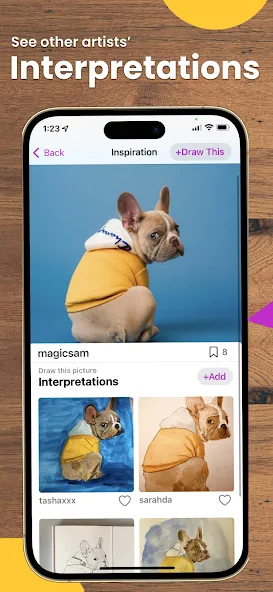
How do I add a picture I drew of an inspiration picture to its page?
Go to your Saved tab, find the drawing that you drew, then press Inspiration. On that page you will see a button that says add your drawing.
The Da Vinci Eye Apk is an innovative art projector that allows users to create beautiful pieces of artwork with ease. It offers a wide range of features, including the ability to project images onto any flat surface and adjust brightness levels for optimal viewing.The app also includes helpful tutorials on how best to use it in order to get maximum results from your projects.
Size:121.73MB Version:5.0.0
Requirements:Android Votes:259
Package Name:com.davincieye.arartprojector Signature:9b529986dc6cc55631d0e2a5f7d9193d
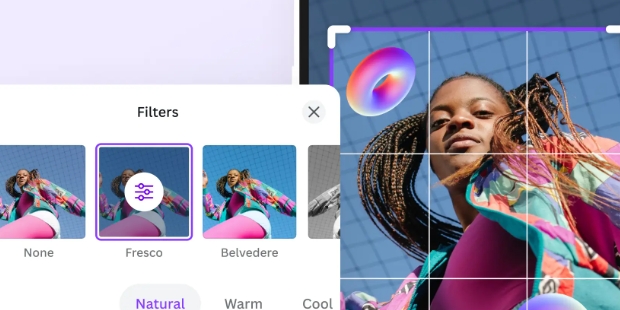
Welcome to our image editing apps! Perfect for beginners and pros alike, they make photo enhancement easy. Use PicsArt to crop, adjust colors, and apply filters. Remove backgrounds instantly with Remove.bg. Get creative with layers and advanced tools on Adobe Photoshop Express. Start transforming your images today!
Visuals serve as a primary gateway for players to engage with games, where distinctive art direction immediately captures attention and creates lasting impressions. An unconventional aesthetic not only stands out in crowded markets but also enhances immersion and emotional connection. When executed with creativity and polish, striking visuals elevate gameplay into a memorable artistic experience. That's why titles with truly exceptional art styles deserve recognition - they offer both visual delight and meaningful interactive expression that resonates with players long after the session ends.
Nowadays, with the popularity of intelligent technology, this new intelligent technology will provide faster content creation in daily life. In the face of today's intelligent landscape application creation, it supports the creation of text content for different themes, provides intelligent image creation and painting, and even realizes various personalized AI creation functions such as intelligent image cutout. In terms of using intelligent tools, you can gain more information, knowledge and inspiration. The editor recommends the following popular AI creation tools for you to experience the help that intelligent AI brings to different scenarios such as life, work, and study.
About us | Contact us | Privacy policy| DMCA
Copyright © 2026 Xiaohei All rights reserved.